Solutions

Install the POS. Open Octopus Manager.

Three ways in, depending on where you are standing. The Windows POS runs the counter, the tablet POS sells and serves, and both keep themselves up to date. Octopus Manager needs nothing installed at all.

Octopus POS for Windows

Installs Octopus POS on any Windows counter or touch monitor. If the POS is already there, it updates it where it stands and leaves everything on the machine — your sales, your products, your settings — exactly as it was.

Download for Windows
  • Windows 10 or 11, 64-bit

The download is a .zip file. Open it, then double-click the setup file inside.

After that it updates itself. New versions are downloaded, checked against the fingerprint published below, and installed from inside the app — so nobody has to come back to this page.
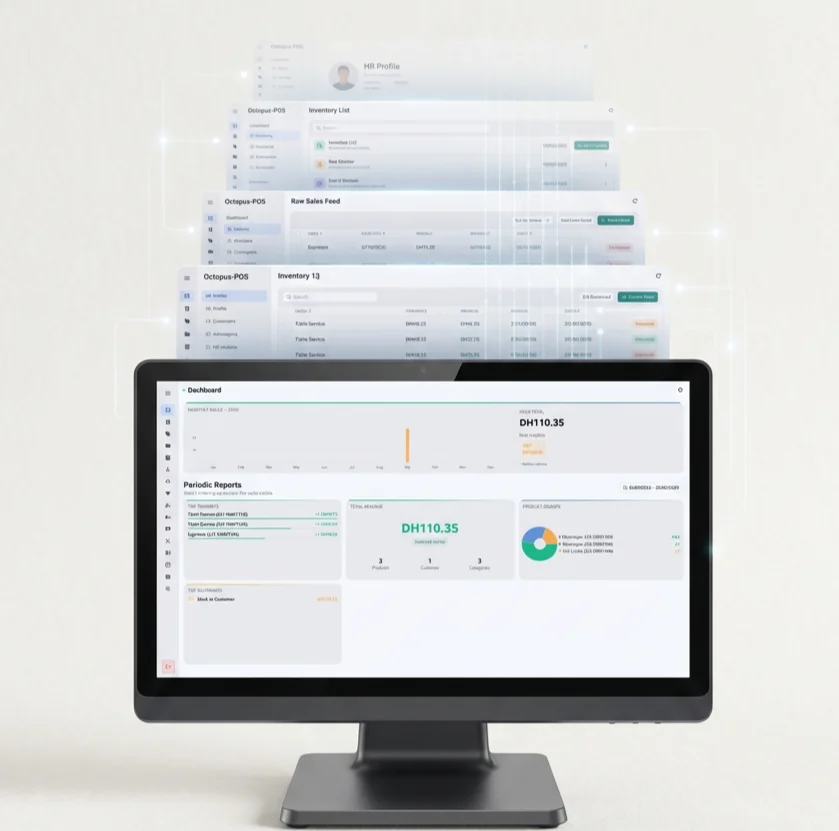
Octopus POS on a Windows touch-screen monitor, showing the sales dashboard.

Octopus POS for Android tablets

A lighter POS made for selling and serving, on a 10 or 13 inch tablet — at the table, or as the only POS in the shop. Setup and back office are done in Octopus Manager, from any phone or PC.

Download for Android tablet
  • An Android tablet, 10 or 13 inches, with a receipt printer on the shop’s network

The first time, Android asks you to allow installs from your browser: allow it once, then tap Install. After that the tablet updates itself — no app store needed.

On the tablet

  • Sale screen, payments, tables, bookings and send to kitchen
  • Finds the receipt printer on the Wi‑Fi in one tap
  • Scans barcodes with the camera
  • Full screen, never sleeps, can be locked on the POS
  • Works offline and syncs when the internet comes back

Octopus Manager

Manage your store from any browser — products, prices and stock, customers, and the day’s takings across every location. And now the whole setup too: tax rates, payment types, option sets, promotions and void reasons.

Open Octopus Manager(opens in a new tab)

Nothing to install: sign in with your owner account and it reads the same data the tills write. It works in a phone or tablet browser as well as on a desktop one.

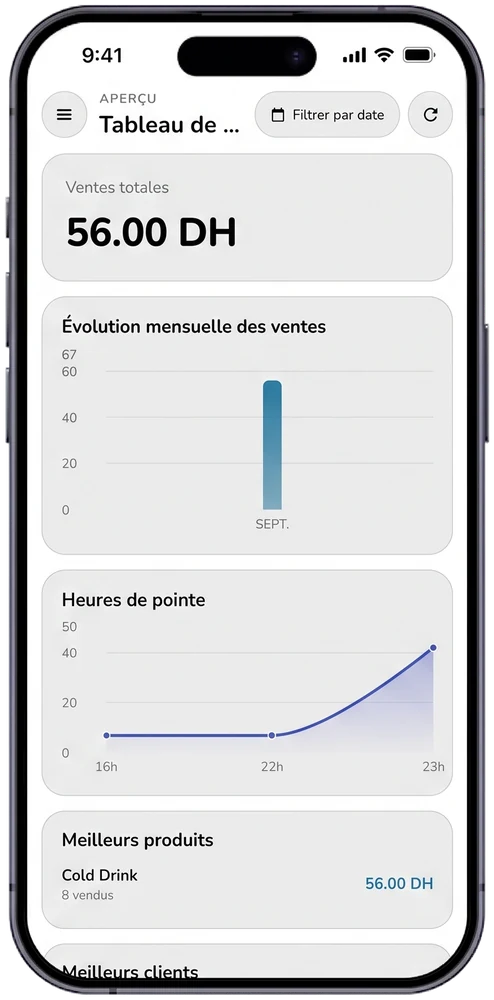
Octopus Manager in a phone browser: total sales, monthly sales, peak hours and best products.

Kitchen Display

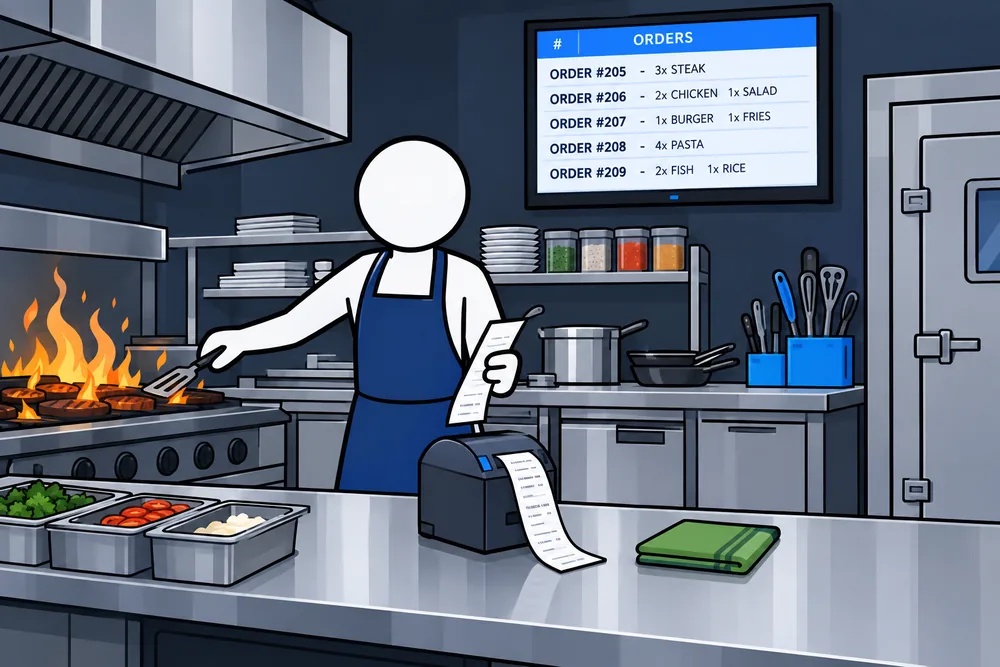
Puts every order on a screen at the pass the moment it is sent, so the kitchen stops waiting on printed tickets. Tickets change colour as they age, and a tap clears them when the plate goes out.

  • A screen at the pass, on the same network as the till

The download is a .zip file. Open it, then double-click the setup file inside.

It talks to the till over your own network, so the kitchen keeps working even when the internet does not. To put it on an Android tablet, allow installs from outside the Play Store first.

Drawing: a cook at the grill holding a kitchen ticket, below a screen listing the orders.

Octopus Waiter

Your waiters take the order at the table on an Android phone or tablet. It goes straight to the POS and the kitchen — no walking back to the counter.

Coming soon to this page.

  • An Android phone or tablet, on the same Wi‑Fi as the POS

In the waiter’s hand

  • Pairs with the POS with a 6-digit code — no account to create
  • Tables at a glance, orders taken at the table
  • The menu with pictures, kept on the device
  • Sends to the POS and the kitchen in one tap
  • Works on the shop’s Wi‑Fi, even without internet

Installing for the first time?

The help centre walks through registering a POS, opening the register, connecting a receipt printer and putting the kitchen display on the shop network.