Step-by-step guides for setting up a POS, selling, closing the day and fixing common problems — using the words you see on screen.
Getting started
Take a new POS from installation to its first sale.
Register a new POS
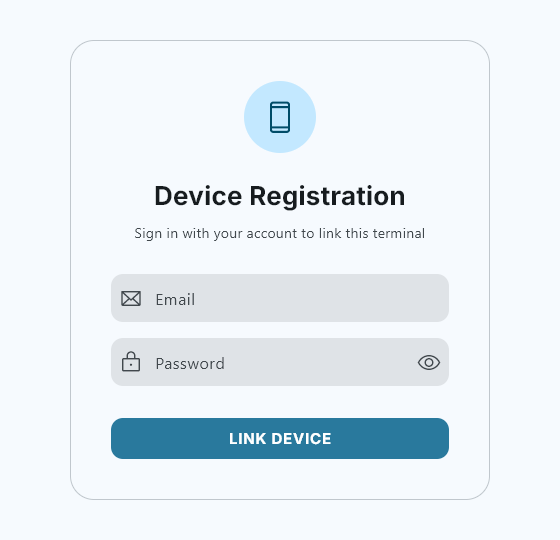
Each Windows till and Android tablet is linked to your company account once, the first time the app opens.
Install Octopus POS on the machine and open it.
On Device Registration, sign in with your company account’s email and password.
Press LINK DEVICE. The POS now takes up one of the device slots included in your license.
Good to know: Registration needs an internet connection. After that, the POS keeps selling with no internet at all.
Device Registration, the first screen on a new POS.
Start fresh or take over from another POS
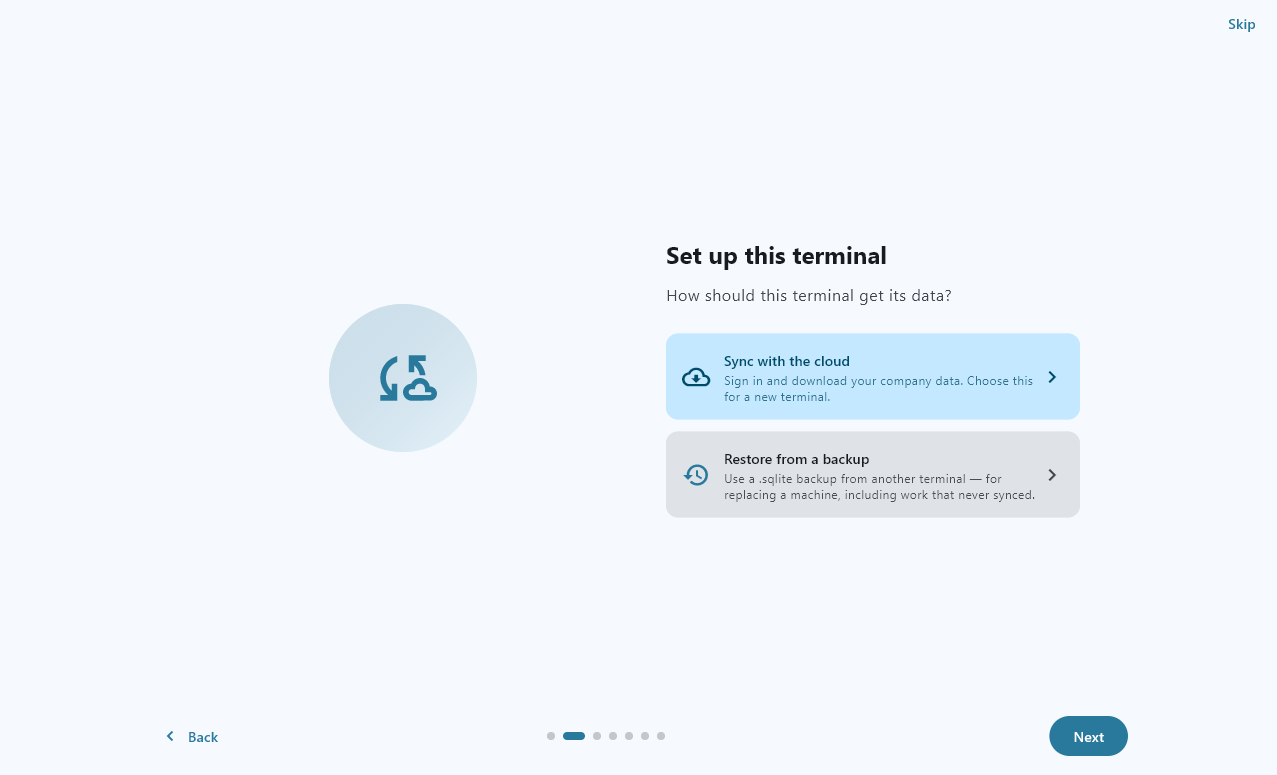
The first set-up question decides where this POS gets its data.
Choose Sync with the cloud for a new POS. You sign in and your company data downloads.
Choose Restore from a backup when you replace a machine, and pick the old POS’s backup file. It brings back work that never synced, with its settings, layout and theme.
A restore restarts the app and skips the rest of set-up — the backup already carries it.
Choose your data source — shown here in French.
Name the POS and choose its look
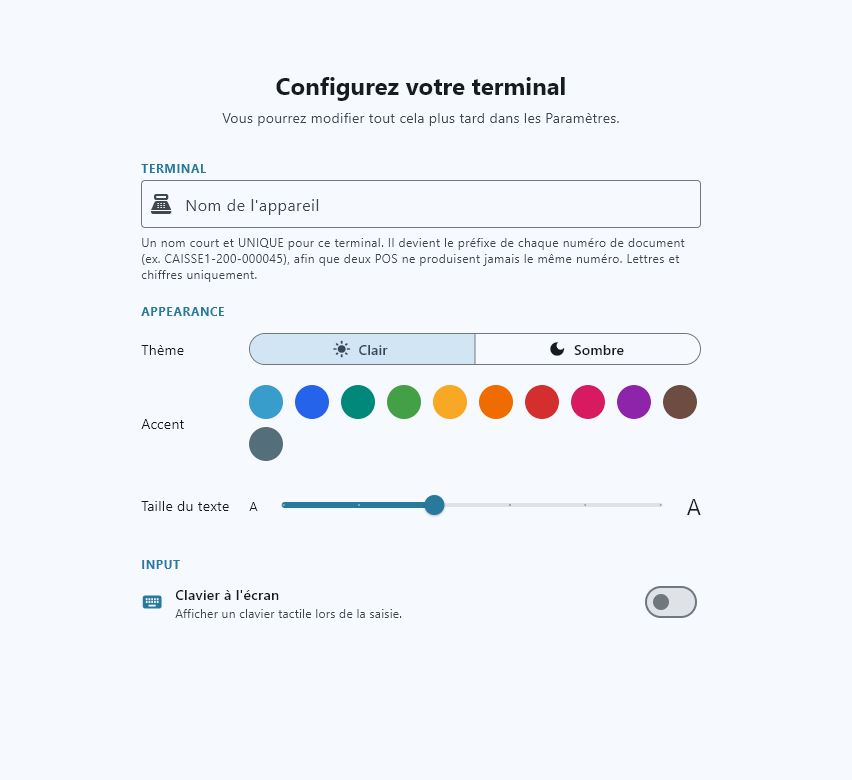
A short, unique name, then the theme, colour and text size that suit your counter.
In Set up your terminal, type a short name — letters and digits only, such as CAISSE1.
The name starts every document number the POS issues (CAISSE1‑200‑000045), so no two tills ever produce the same number. The server checks the name is free before you can continue.
Pick light or dark, an accent colour and the text size. They apply straight away and can be changed later in Settings.
Switch on the on-screen keyboard if the machine has no physical keyboard.
Good to know: If the name is taken, another POS on your account already uses it: choose another name, or revoke that one under Active Devices first.
Set up your terminal — shown here in French.
Pick your business type and menu layout
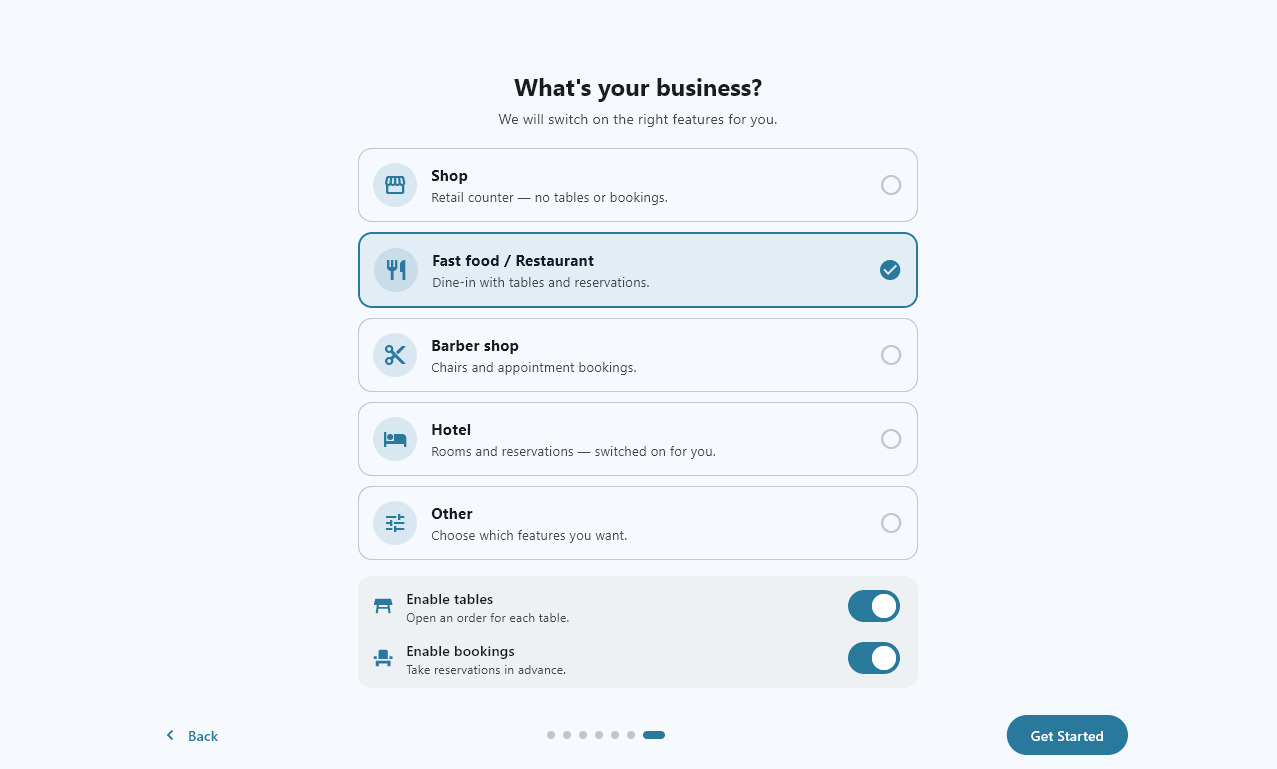
Two last choices shape the sales screen.
Choose the kind of business you run. Where it fits — a restaurant, for example — you can switch tables and bookings on or off.
Choose how products appear on the sales screen: a scrolling list or pages of tiles. You can change it anytime in Settings.
Press Get Started.
Choose your business type — shown here in French.
Selling at the till
The daily routine: sign in, open the register, sell, and close at the end of the day.
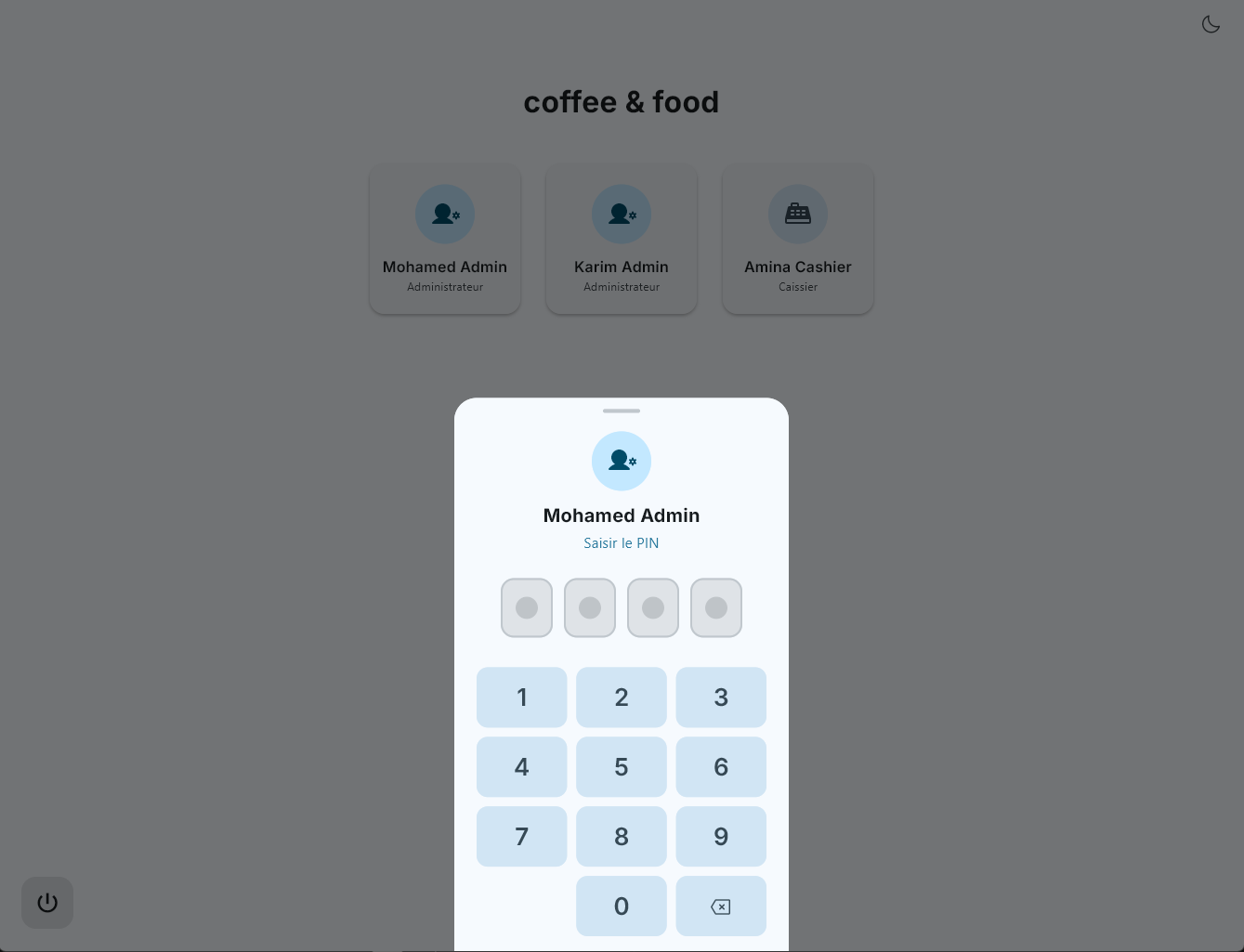
Sign in with your PIN
Everyone signs in with their own PIN, so each sale is recorded against the right name.
Tap your name on the sign-in screen.
Enter your PIN.
Good to know: A PIN belongs to one user on one POS. What you can do once signed in depends on your role — see Security Rules.
Sign in — shown here in French.
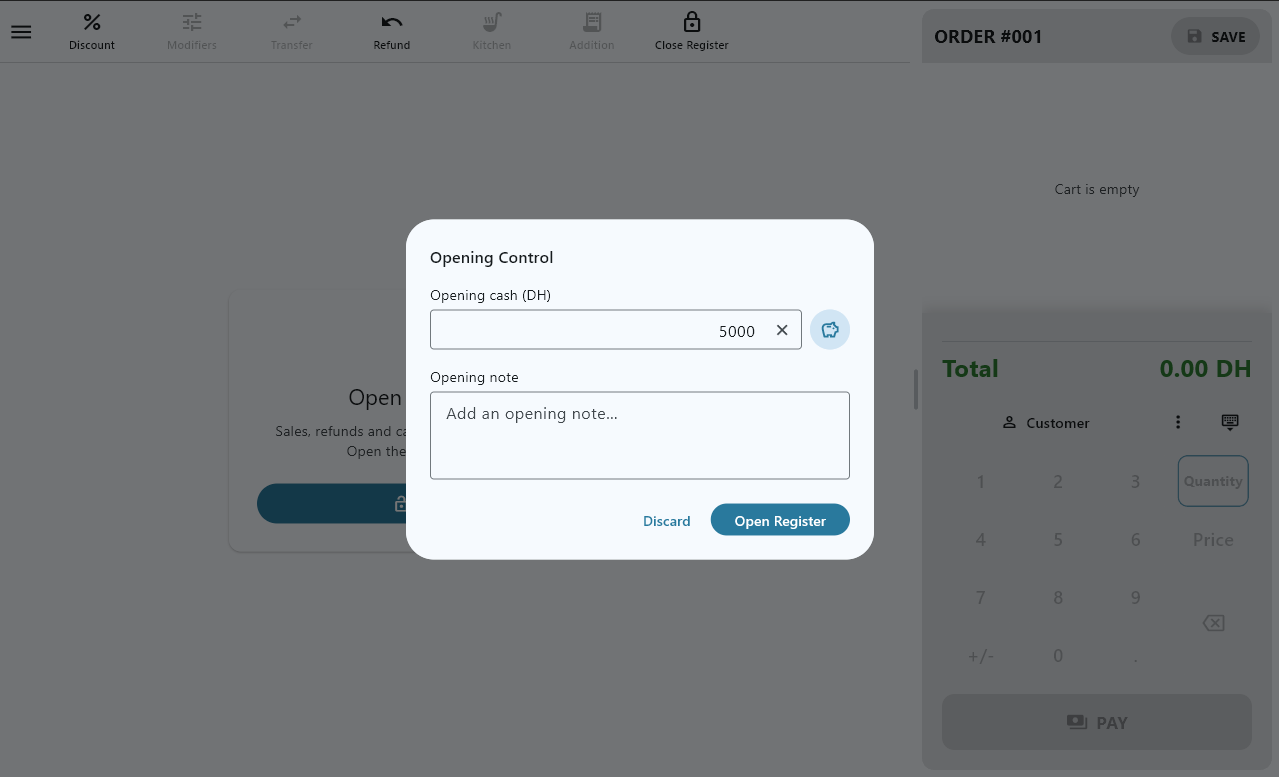
Open the register
A session ties the day’s sales, payments and cash movements to one register.
If the POS asks, Choose register. This device only gives that POS its own session; a named register such as “Front Till” is shared by every POS pointed at it.
In Opening Control, count the cash float in the drawer and confirm it.
The register is open. You can sell.
Good to know: Count the float carefully: the cash expected at closing is worked out from it.
Open the register — shown here in French.
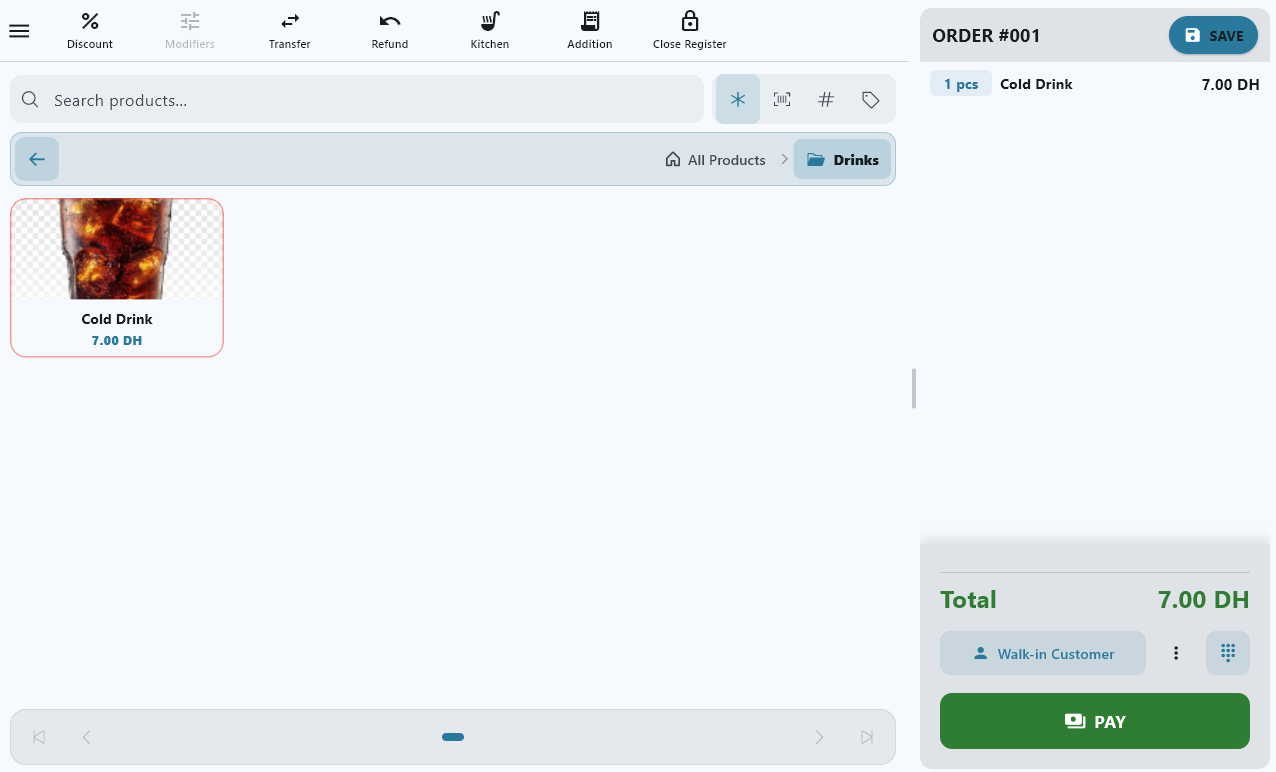
Ring up a sale
Add products, adjust quantities, take the payment.
Tap products on the sales screen, or scan their barcode.
To change a quantity, open the quantity keypad. On a Windows till with a serial scale it shows the live weight — press Use weight once the reading is stable.
Take the payment. The receipt prints if a receipt printer is set up.
Ring up a sale — shown here in French.
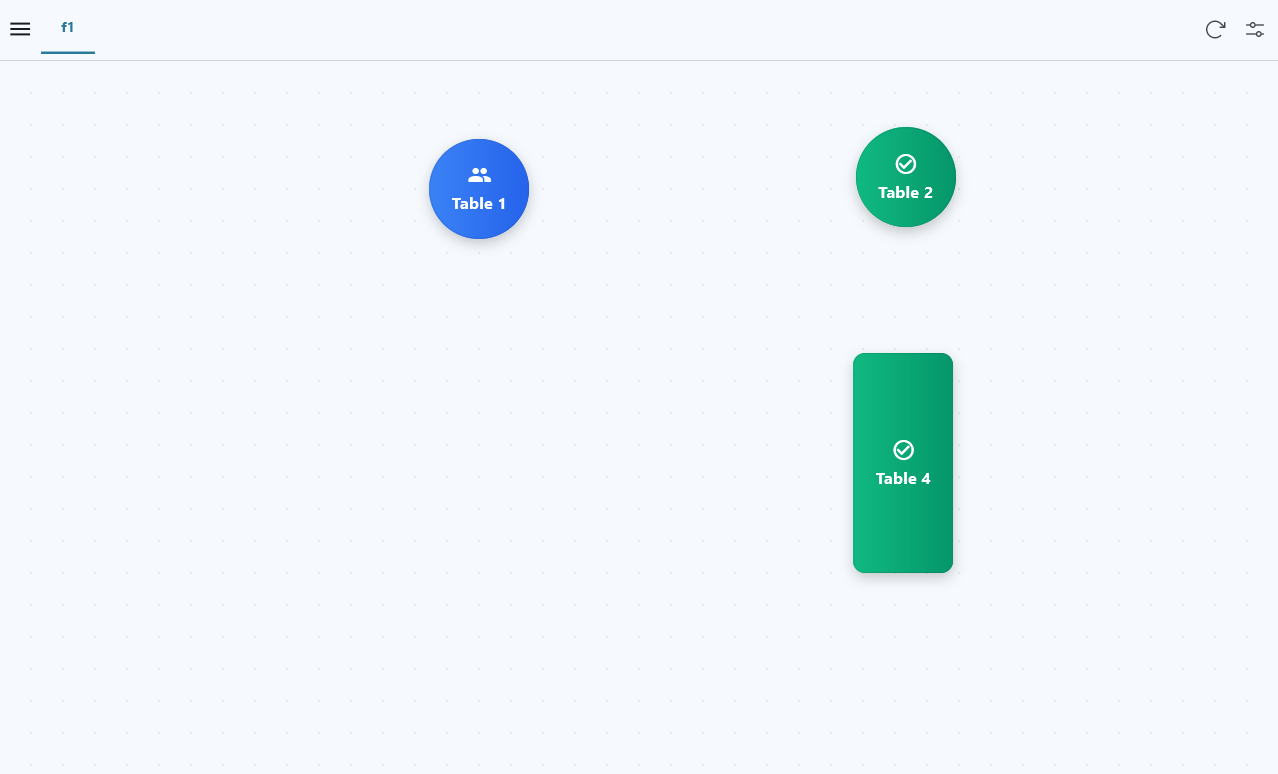
Tables, open orders and bookings
For businesses that serve at the table.
Open Floor Plan, pick a table and add its order.
Orders that are not paid yet wait in Open Orders until you come back to them.
Reservations are managed in Bookings.
Good to know:Floor Plan and Bookings only appear when they are switched on for your business.
Manage tables and orders — shown here in French.
Refund a sale
A refund always starts from the original sale.
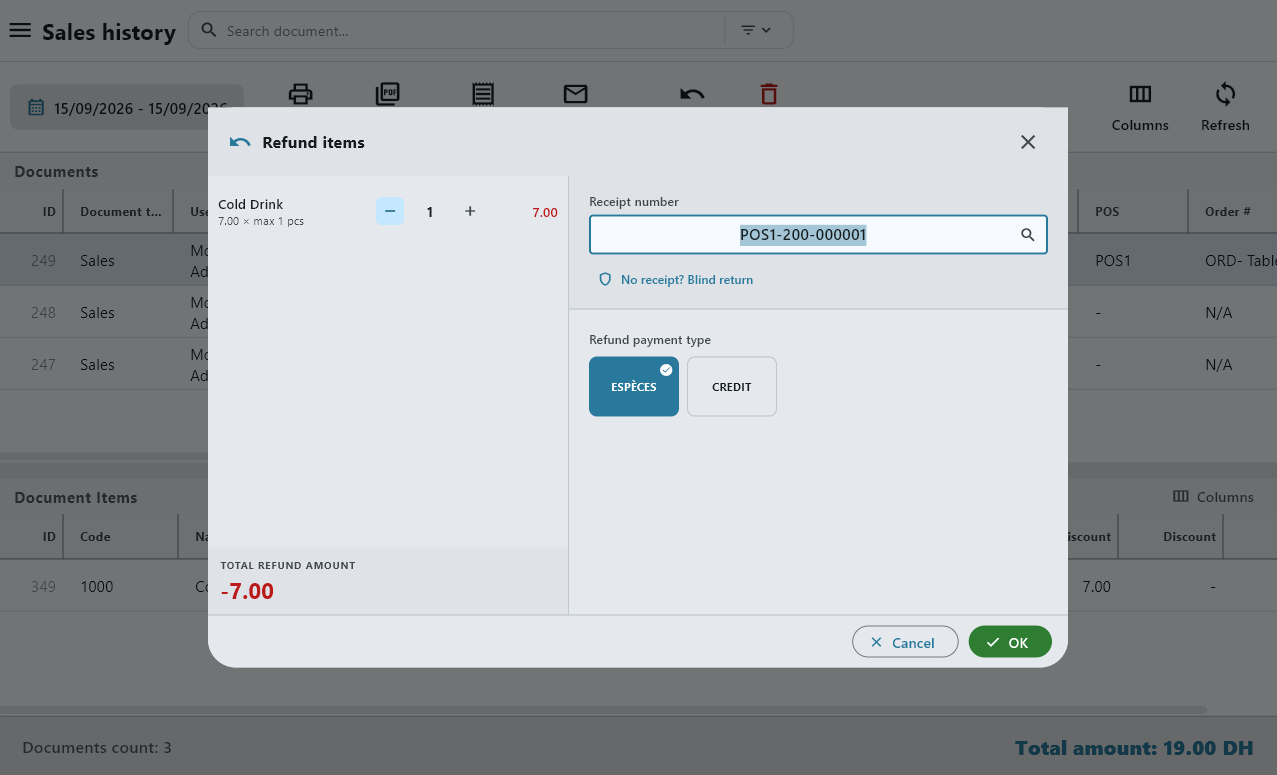
Open Sales history and find the sale.
Choose Refund and follow the dialog.
Good to know: Refunds can be limited to admins in Security Rules.
Refund a sale — shown here in French.
Record cash in and out
Cash that enters or leaves the drawer outside a sale.
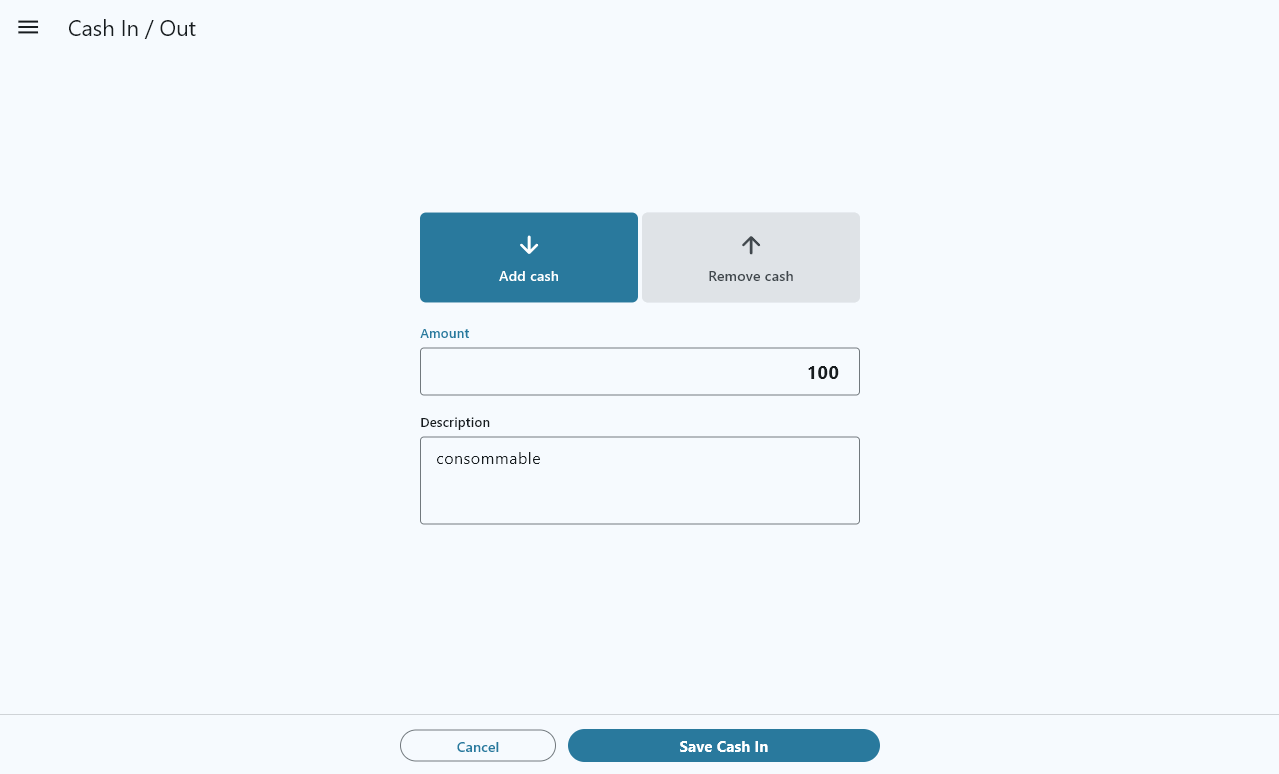
Use Cash In / Out for change brought in, a supplier paid from the till, or cash taken to the bank.
Each movement is added to the register’s expected cash, so the closing count still balances.
Record cash in and out — shown here in French.
Close the register
Count the drawer, reconcile each payment method and issue the Z-report.
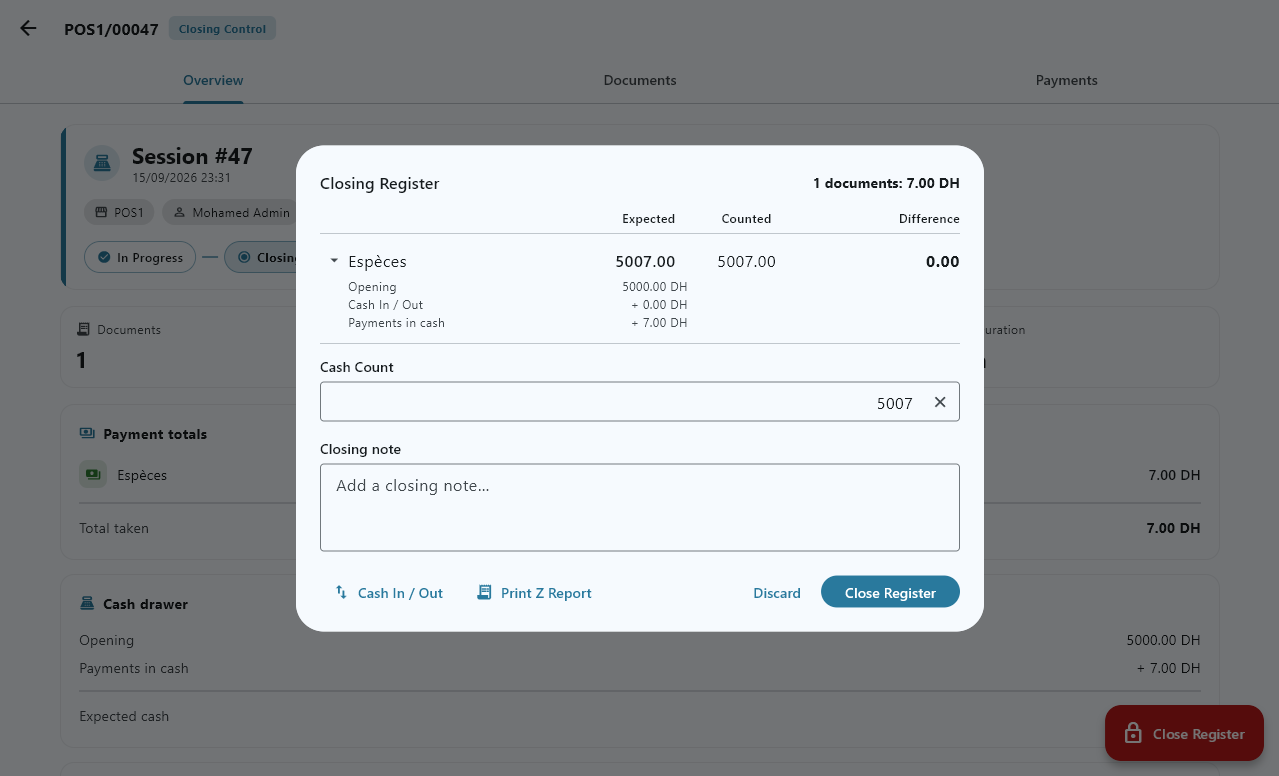
Choose Close Register at the end of the day.
Each payment method shows the amount expected. Count the cash in the drawer and enter it; confirm the card and other totals.
Add a closing note if something does not match, then press Close Register. The session’s Z-report is generated.
Good to know: Selling stops the moment closing starts, so no sale can land between the count and the report.
Close the register — shown here in French.
Offline and sync
The POS keeps selling without internet and catches up on its own.
Keep selling when the connection drops
Nothing changes at the till.
Sales, receipts and kitchen tickets keep working — they run on the POS itself and on your shop’s own network.
Changes are saved on the POS and marked Pending sync.
When the connection returns, they are sent automatically.
Manage offline sales — shown here in French.
Check what has synced
See what is still waiting to reach the server.
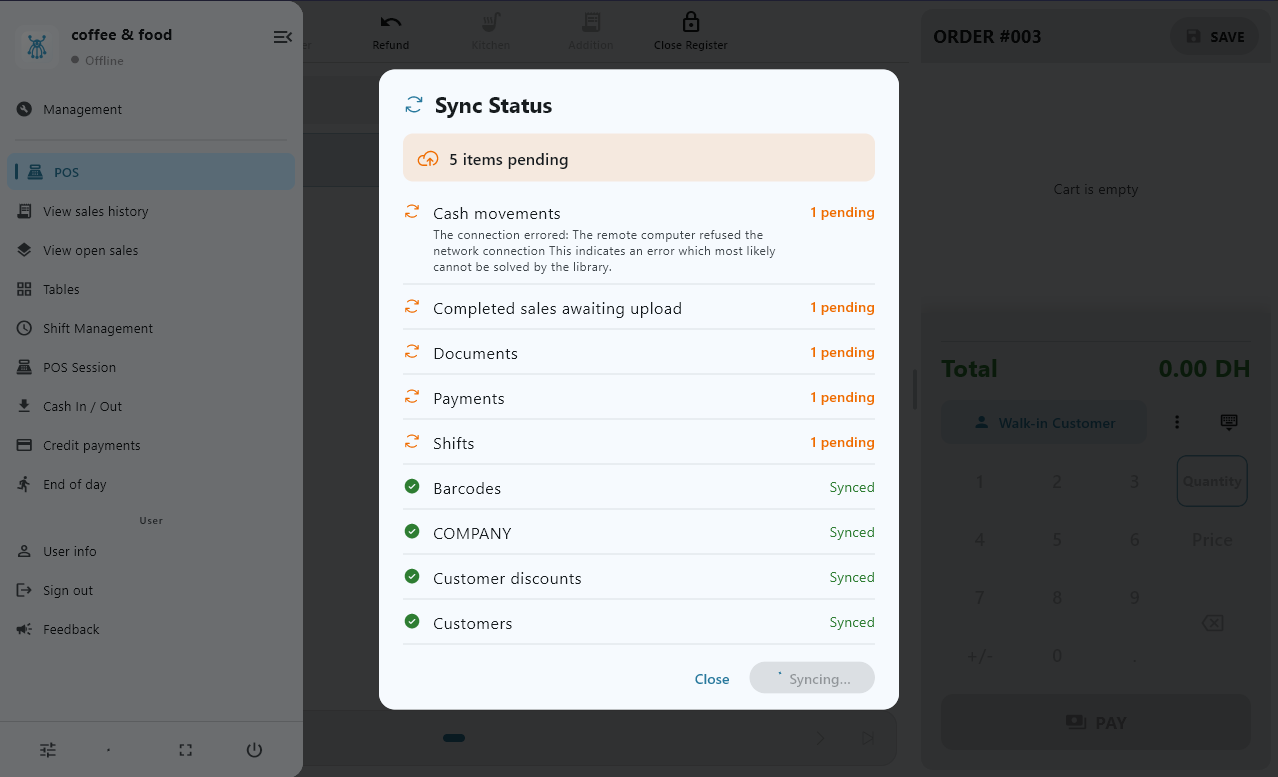
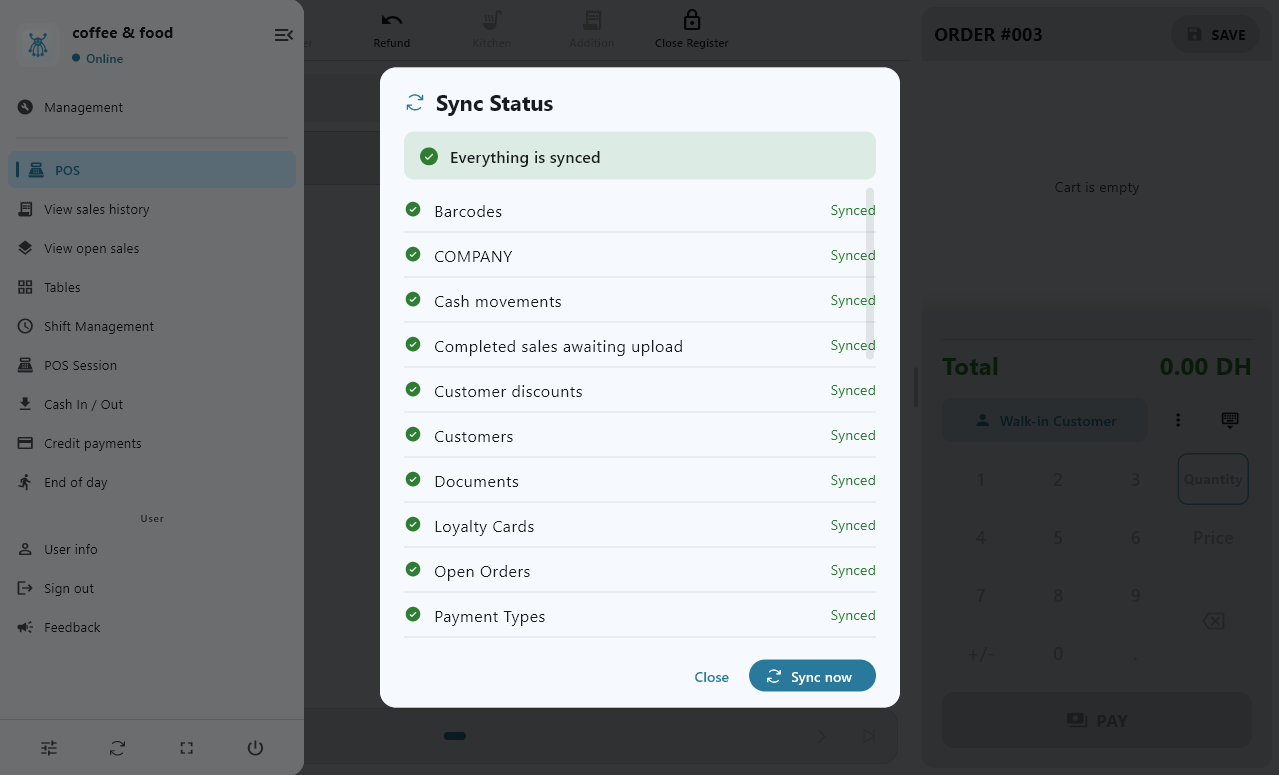
Open the sync status panel from the sync button. It lists each kind of record, with what is pending and what is Synced.
Press Sync now to send everything straight away.
Check sync status — shown here in French.
Back up the POS
Automatic backups protect work that has not synced yet.
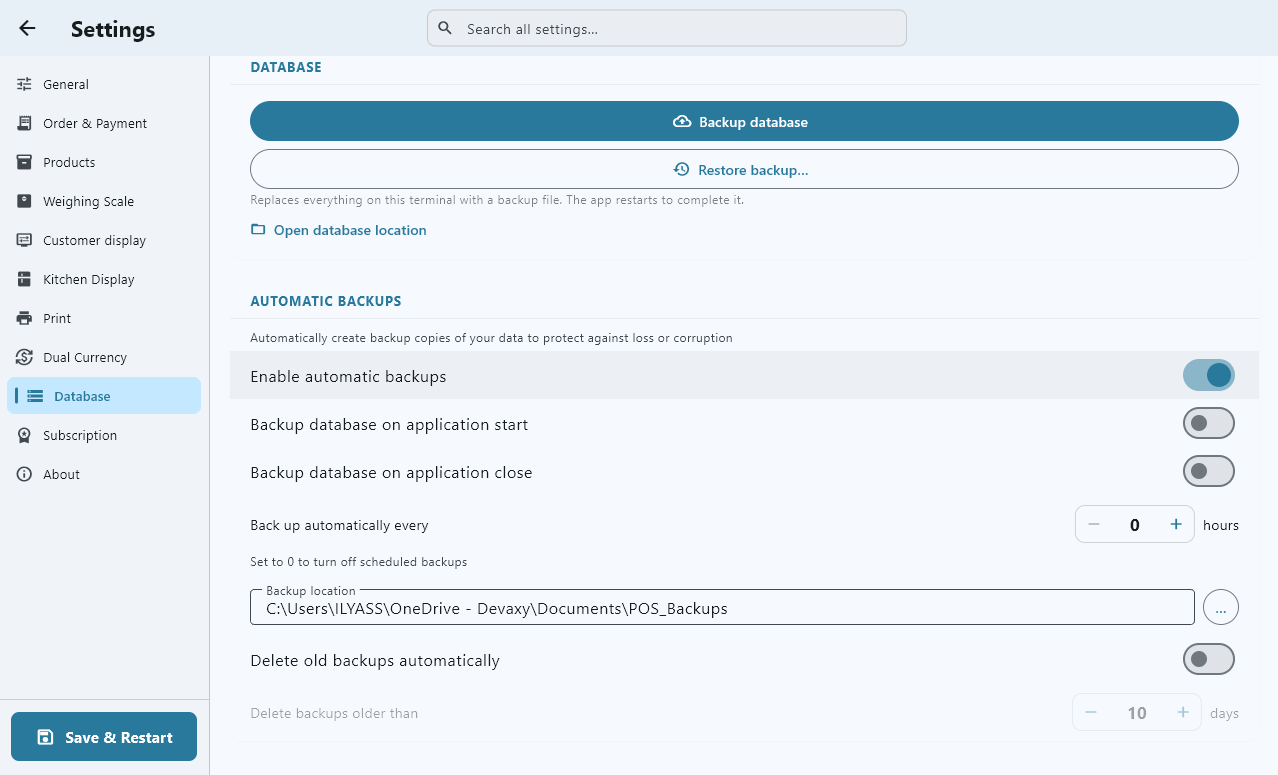
In Settings, open Database & Backup.
Set Back up automatically every and choose where backups are saved. You can also back up each time the app starts or closes.
A backup is one single file. To move a POS onto a new machine, restore that file during set-up.
Configure database backups — shown here in French.
Management
Products, stock, customers and staff, from Management on the POS.
Products, categories and taxes
Build the catalogue the till sells from.
In Management, create your Categories and Taxes first.
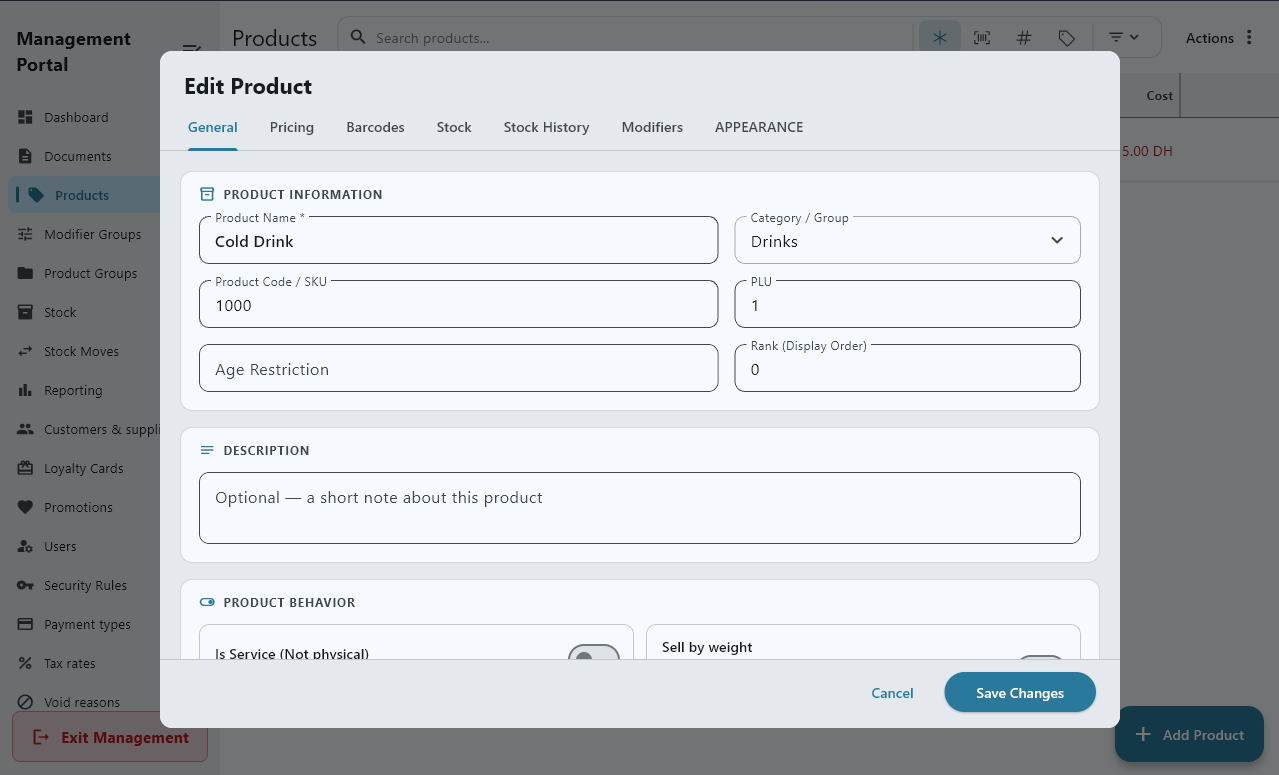
Add Products with a price, a category, a tax and, if they have one, a barcode.
Create and edit products — shown here in French.
Stock and warehouses
Track stock per warehouse.
Create your Warehouses.
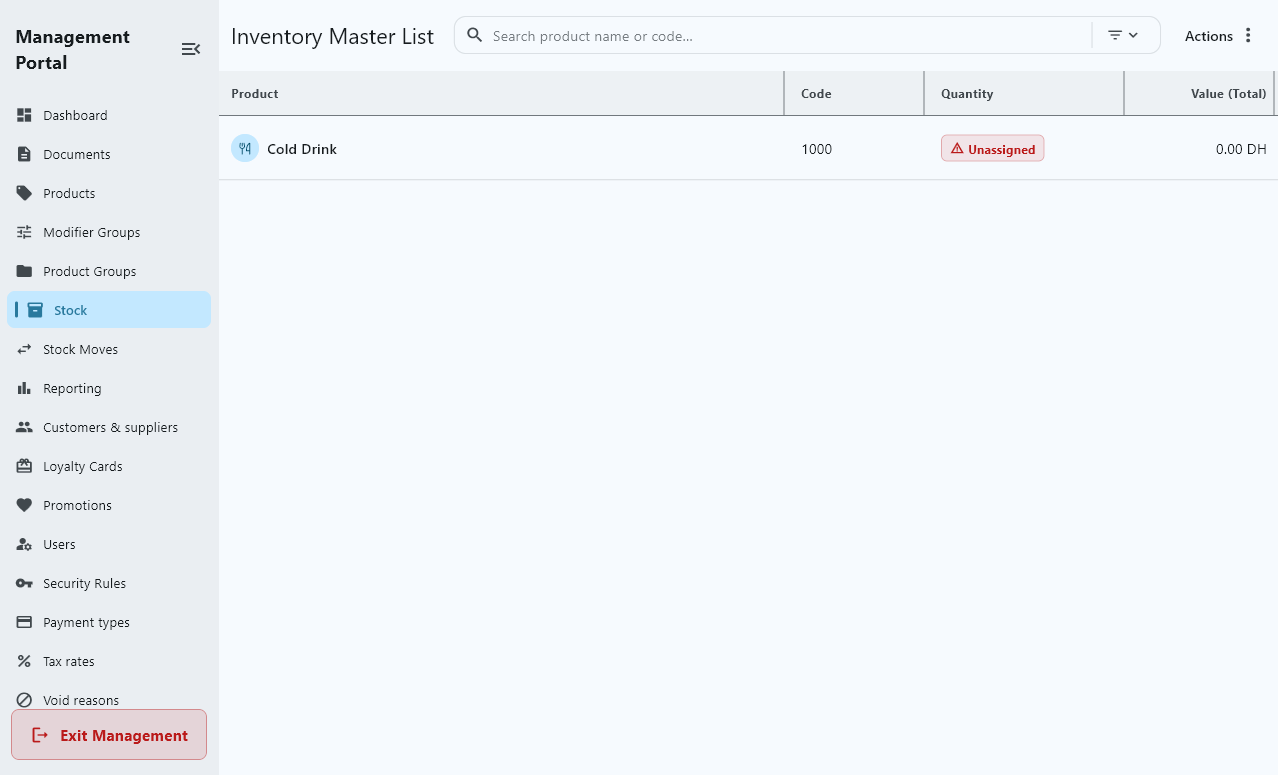
Stock lists every product in every warehouse. A product with no stock record in a warehouse shows as unassigned, with an option to add it.
Items in one sale can come from different warehouses. If an item is out of stock, the app suggests warehouses that still have it.
Manage stock and warehouses — shown here in French.
Customers, loyalty and promotions
Know your regulars and reward them.
Keep customer records in Customers and attach a customer to a sale.
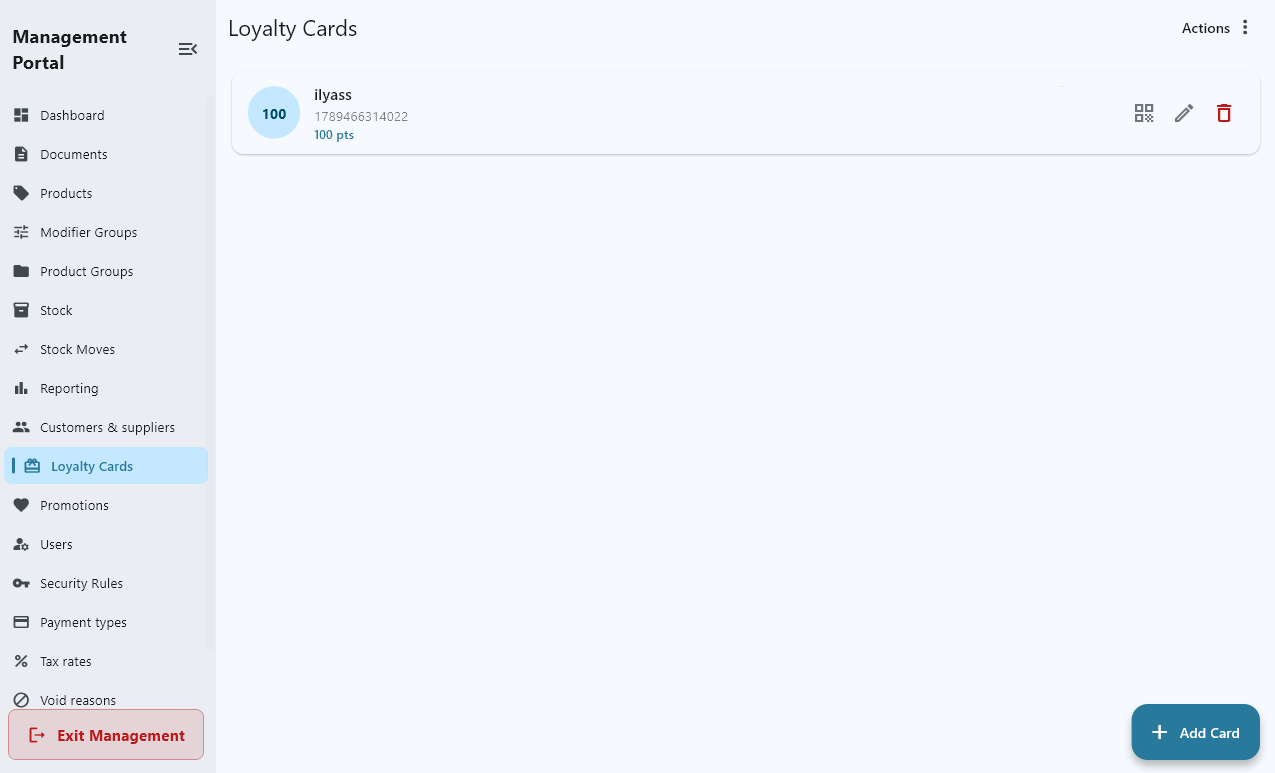
Issue Loyalty Cards and set how customers earn points.
Set up your offers in Promotions.
Manage customer loyalty — shown here in French.
Users and security rules
Decide who can do what.
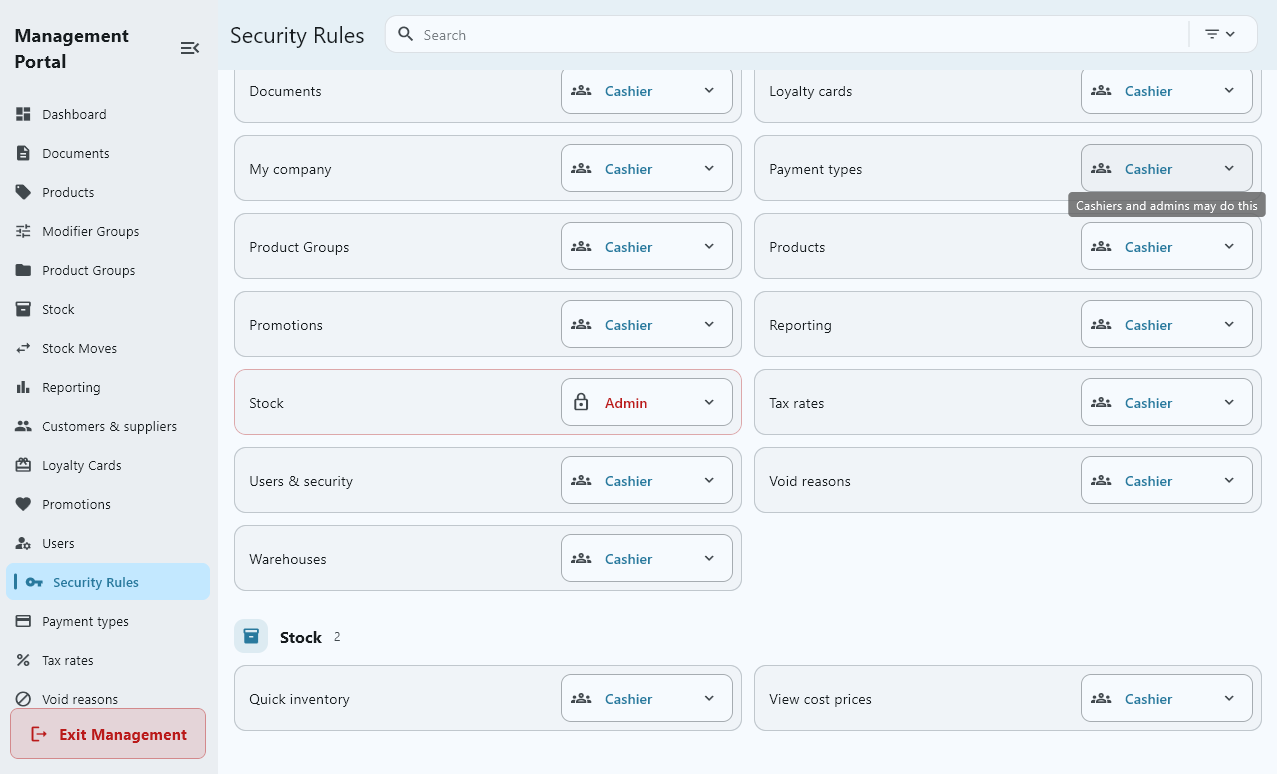
Add staff in Users. An Admin can do everything; a Cashier can do what the security rules allow.
In Security Rules, set each action — refunds, opening the cash drawer, viewing cost prices — to Cashier or Admin.
Rules apply to the whole company, on every POS.
Configure security rules — shown here in French.
Reports and sales history
See how the business is doing.
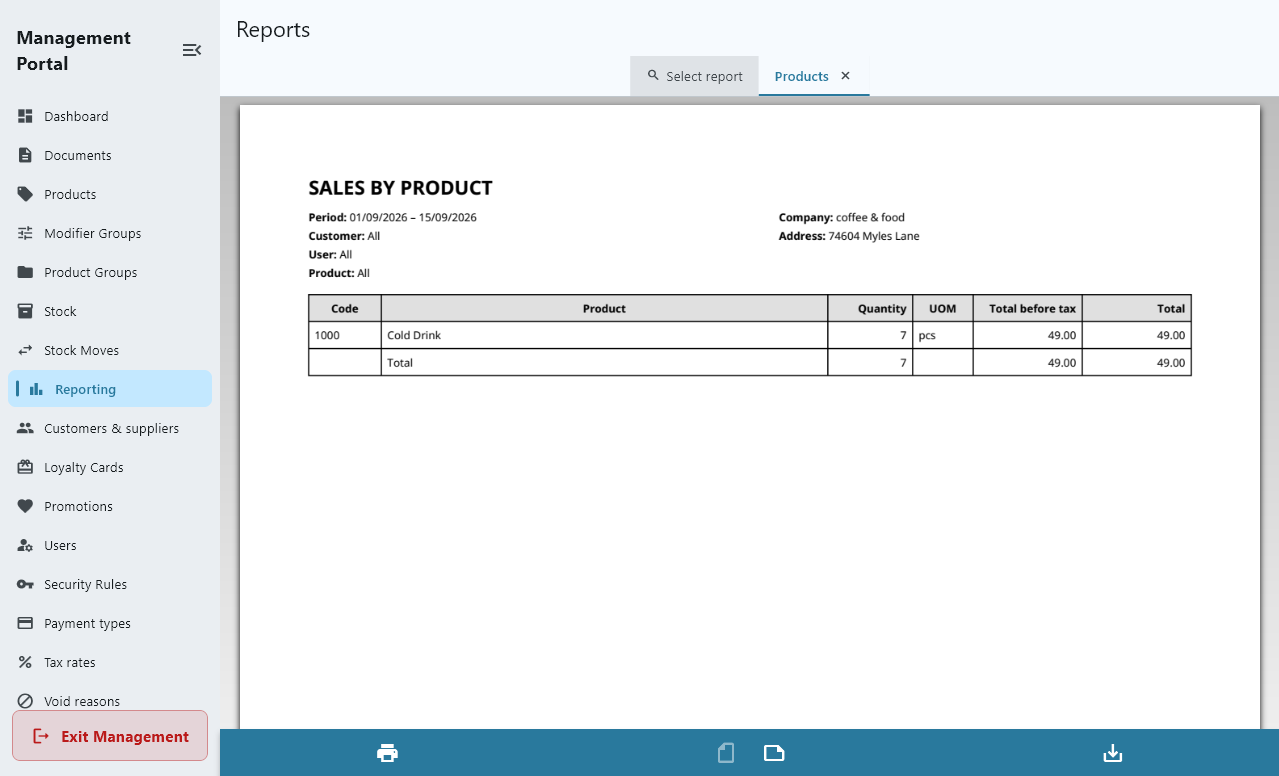
Reports break sales down by product, customer and user.
Sales history lists every sale. From there you can reprint a receipt or start a refund.
View sales reports — shown here in French.
Printers and displays
Receipt printers, the kitchen display, the customer display and scales.
Set up a receipt printer
Windows printers and network printers.
Open Printer settings and choose the printer you are setting up, such as the receipt printer.
Under Connection, choose This computer (Windows printer) for a printer installed in Windows, or Network printer (Wi-Fi / LAN) and enter its IP address and port — usually 9100.
Set the Paper size to 58 mm or 80 mm and print a test page. It is a ruler across the full width: if it wraps, the paper size is wrong.
Good to know: Android tablets print through a network printer. The connection is saved on each POS separately, so a Windows till and a tablet can reach the same printer in different ways.
Send orders to the kitchen display
Tickets on a screen in the kitchen instead of paper.
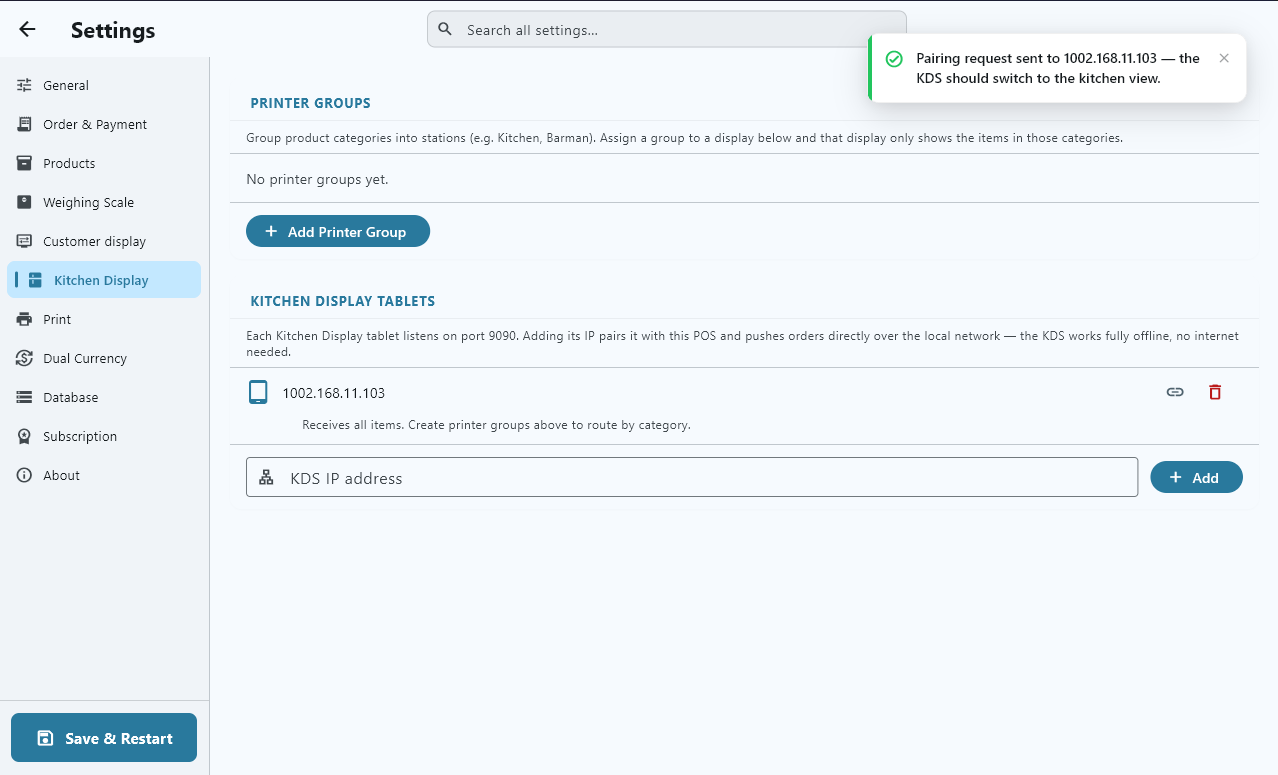
Install the Octopus kitchen display app on the kitchen screen, on the same network as your tills.
On each till, open Settings, then Kitchen Display, and add the kitchen screen’s KDS IP address.
Orders sent from the till appear in the kitchen straight away.
Good to know: The till and the kitchen talk over your own network, so this keeps working without internet.
Configure the kitchen display — shown here in French.
Show the order to your customer
A second screen that mirrors the cart as you sell.
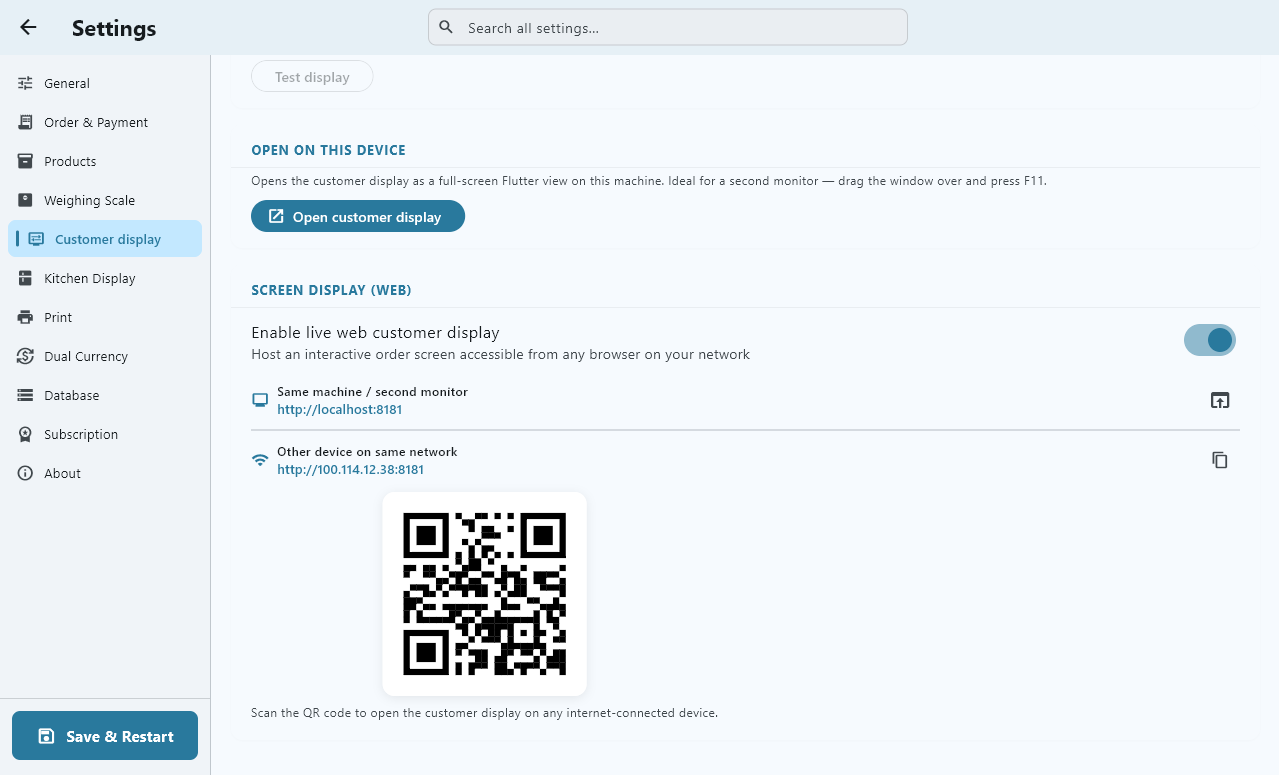
In Settings, turn on the Customer display.
Scan the QR code shown there to open the customer display on another device, such as a tablet facing the customer.
The customer sees each item and the total as you add them.
Open the customer display — shown here in French.
Weighing scales
Barcode scales and serial scales work differently.
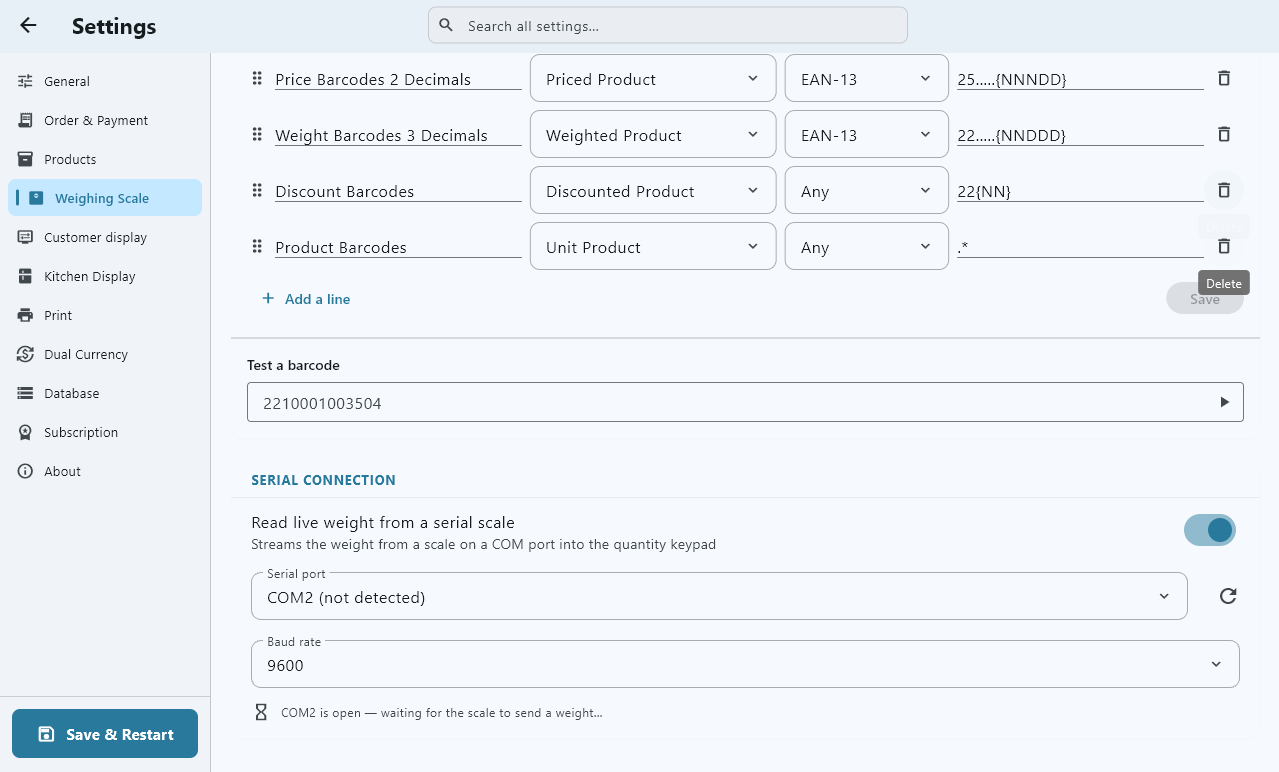
Barcode scales: items weighed and labelled on the scale are scanned like any other barcode, on Windows and Android.
Serial scales (Windows only): in Settings, open Weighing Scale, choose the COM port and speed, and check the live reading before you sell.
At the till, the quantity keypad shows the live weight. Use weight becomes available once the reading is stable.
Configure the weighing scale — shown here in French.
Troubleshooting
Quick fixes for the problems that come up most.
The printer prints nothing
+
The error message tells you which address the POS tried.
The error names the address and port the POS could not reach, for example 192.168.1.50:9100.
Check the printer is switched on and on the same network, and that its IP address and port match Printer settings.
Type the IP address on its own — no “http://” and no port, which has its own field — then print a test page.
Sales are not reaching the back office
+
They are waiting on the POS.
Open the sync status panel and look for records marked Pending sync.
“Could not reach the server” means the POS has no internet. Reconnect it, then press Sync now.
The POS name is already used
+
A name can belong to only one POS on your account.
Choose another name.
Or, if the old POS is gone for good, revoke it under Active Devices and use the name again.
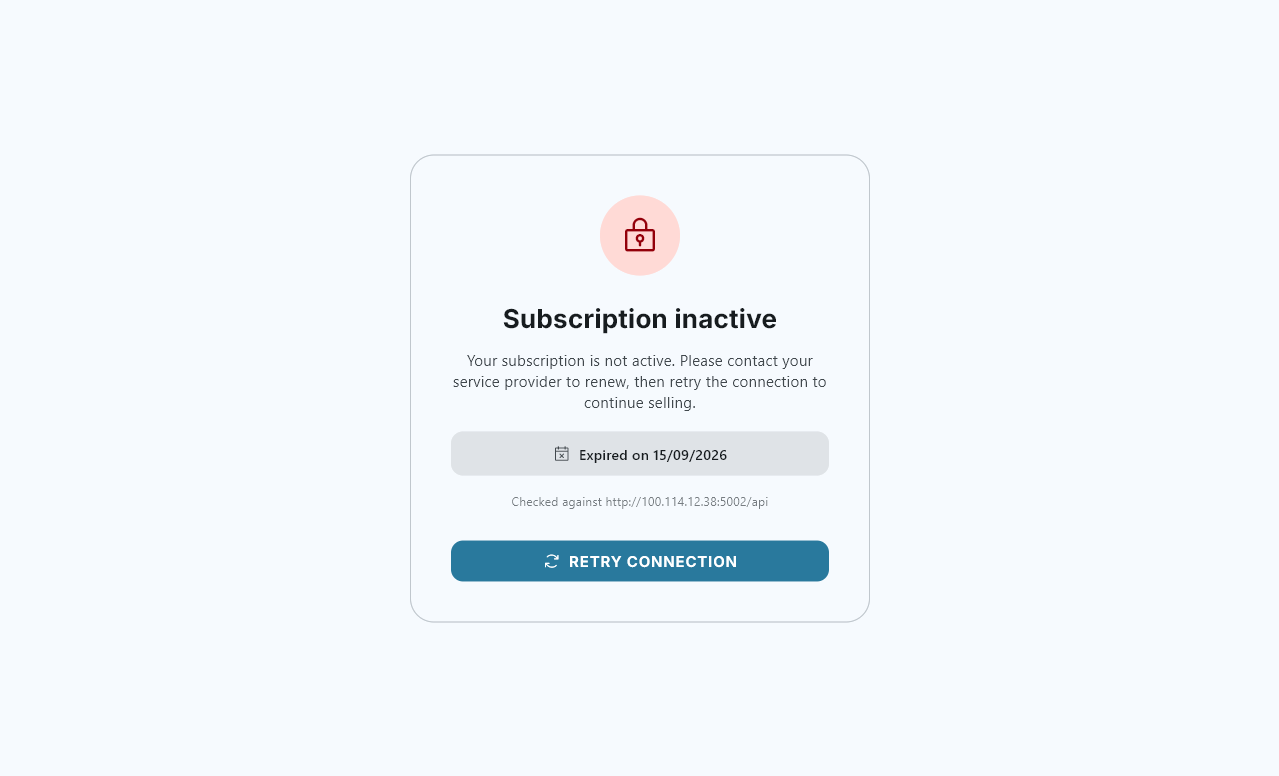
“Subscription inactive” blocks the till
+
The POS could not confirm your license for too long.
Connect the POS to the internet so it can refresh its license.
If Subscription inactive stays on screen, contact us.
Subscription inactive — shown here in French.
The POS will not switch register
+
The current register still has an open session.
Close this register’s session first.
Switching with a session open would leave that register open, with no way back to it from this POS.
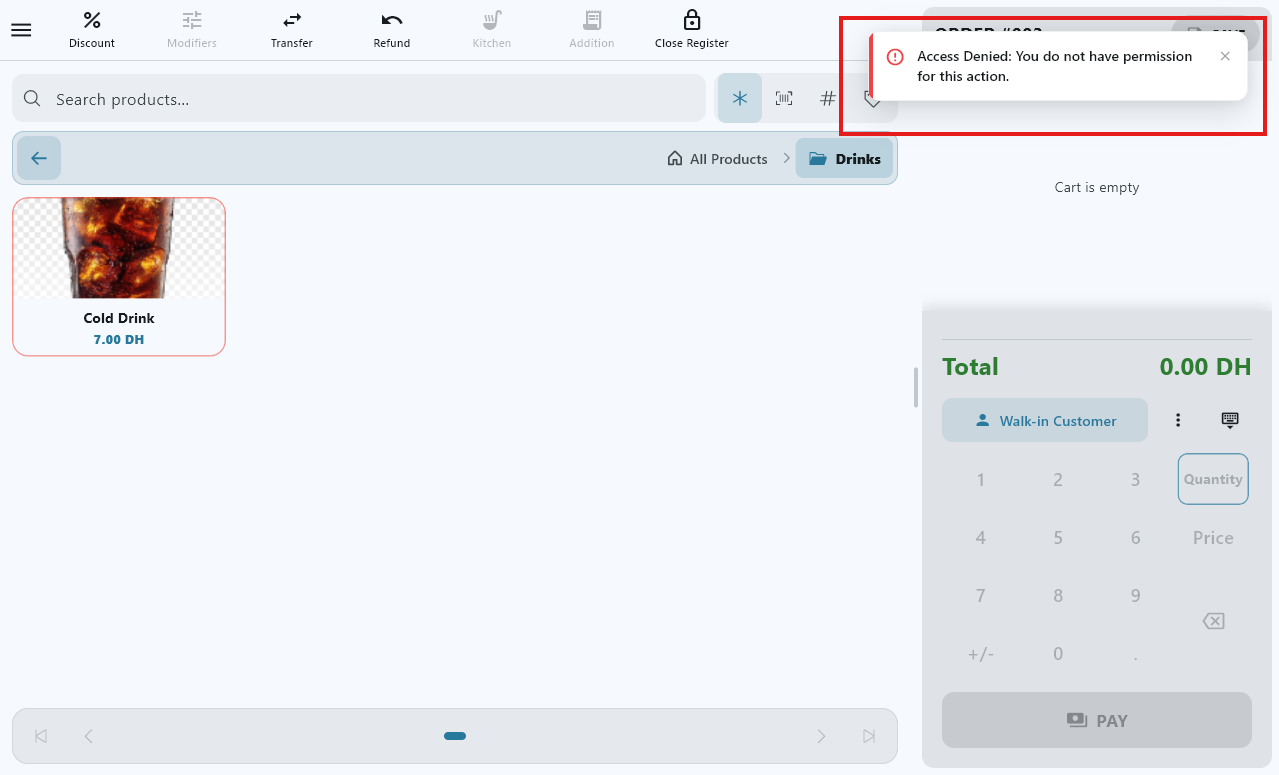
A cashier is refused an action
+
The action is reserved for admins.
In Security Rules, the action is set to Admin.
Ask an admin to do it, or change the rule to Cashier for the whole company.
Cashier refused — shown here in French.
Still stuck?
Send us the name of the POS, what you were doing and the exact message on screen, and we will help you fix it.